How to Import Trades from Groww
Manual entry is slow and prone to errors. SyncTrade’s Groww Import tool processes your Groww Order History Excel in seconds, grouping executions, linking updates to open positions, and skipping duplicates before anything is saved.
Before You Start
To import your trades, first export your Order History file from Groww.
- Log in to Groww.
- Click your user avatar (top-right).
- Click Reports > Stocks Order history.
- Choose your desired date range and click Download.
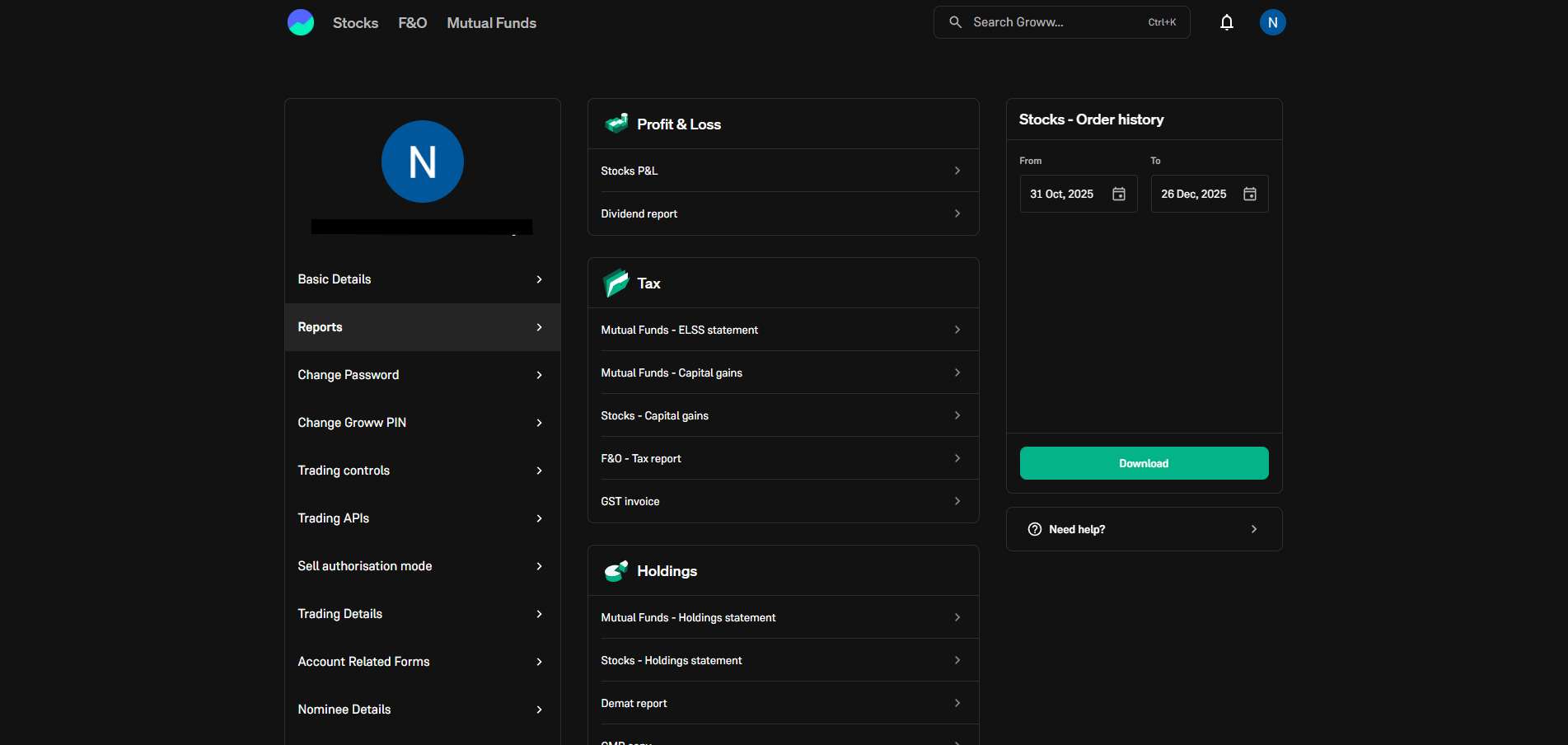
Navigate to Reports > Stocks Order history in Groww to download your trade file.
Warning: Don’t modify the Excel file (especially date/number formats). Upload the raw export from Groww.
Note: Groww imports use Excel formats (
.xlsx,.xls) (unlike Zerodha’s CSV flow).
Step-by-Step Import Guide
Step 1: Upload & Validation
- Go to Dashboard → Trading Accounts (
/trading-accounts). - In the table row where Broker Name: Groww, click the Upload (Import) icon in the Actions column.
- In the Import Trades modal, upload your Groww Order History Excel file:
- Drag & drop the file into the drop zone, or
- Click Browse to select
.xlsx/.xls.
- Click Upload & Preview.
SyncTrade validates the file server-side immediately after upload. If the file is empty or not a valid Groww Order History export, you’ll see an inline error in the modal.
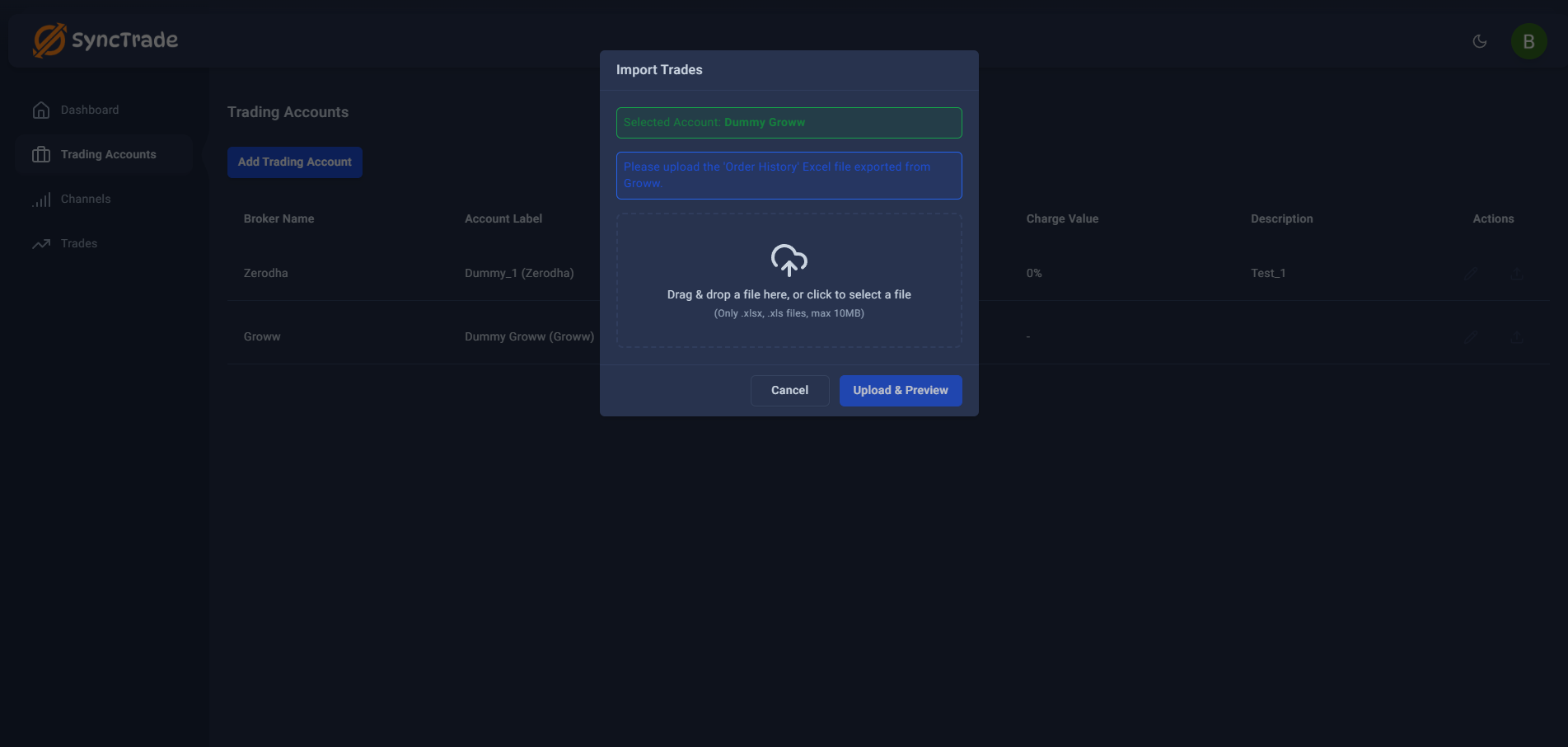
Upload the Groww 'Order History' Excel file and click Upload & Preview.
Step 2: The Smart Preview (Critical)
Before saving anything, SyncTrade performs a “Dry Run” analysis. This feature protects your data integrity by categorizing every row in your file before it touches your journal.
At the top, you’ll see summary cards for:
- New Trades: Completely new trade groups detected.
- Updates: Executions mapped to existing open positions in SyncTrade.
- Skipped Duplicates: Rows detected as already imported and skipped.
Use the tabs to review exactly how SyncTrade interpreted your file.
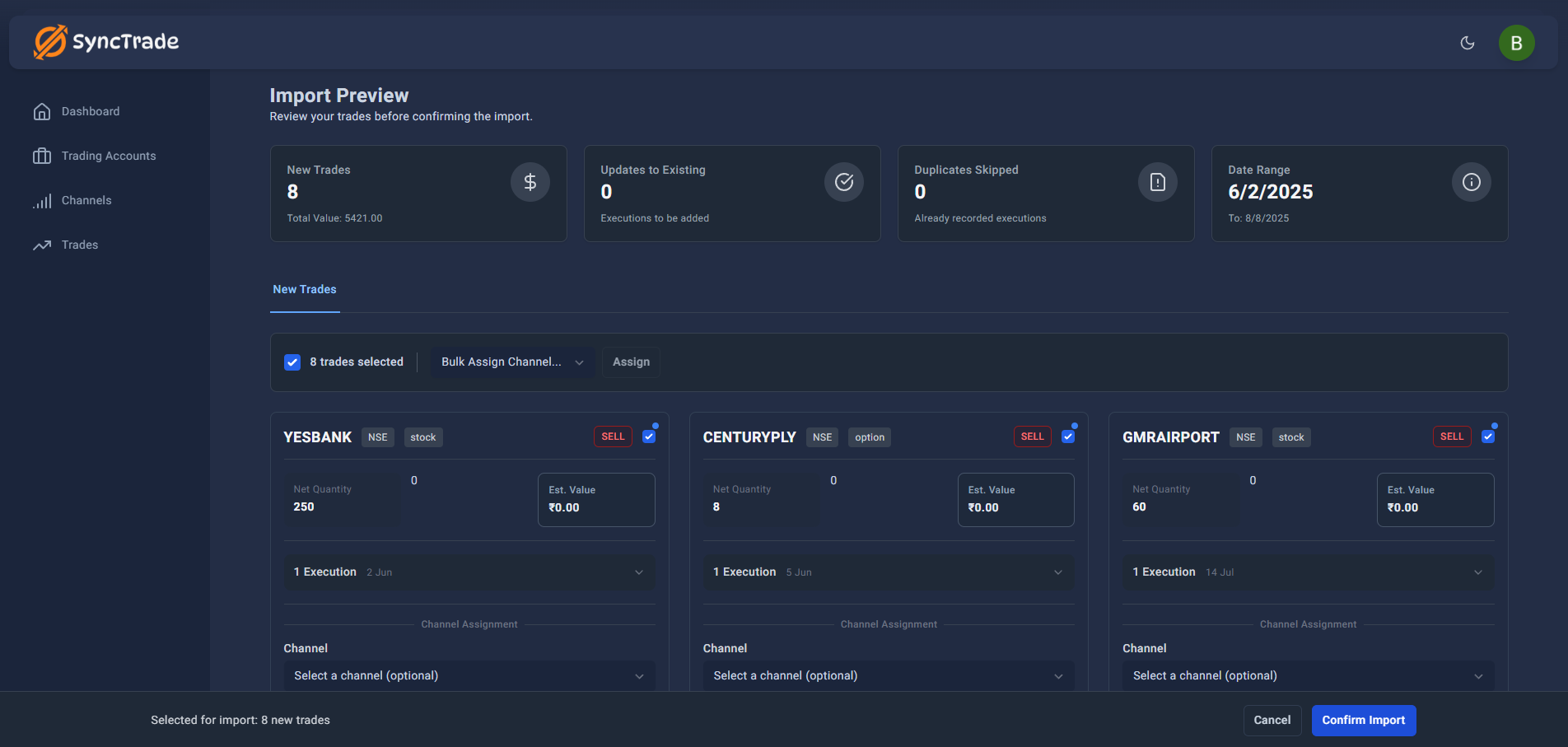
Review New Trades, Updates, and Skipped Duplicates before confirming.
Duplicate detection (how it stays clean):
- A row is flagged as duplicate if Exchange Order Id matches an existing record, or
- If the combination of Symbol + Time + Qty + Price exactly matches an existing record.
Step 3: Channel Tagging (Organization)
Before importing, you can organize trades by assigning a channel/strategy directly in the preview.
- On each New Trade card, find Channel Assignment.
- Use the dropdown Select Strategy / Channel to tag trades before they enter your journal.
You can also control what gets imported:
- Use Select All from the action bar to select a batch quickly.
- Use individual checkboxes on trade cards to import only a subset.
Step 4: Final Confirmation
When you’re satisfied with the preview:
- Click Confirm Import.
- Review the confirmation dialog:
- Title: Confirm Import?
- Body: “You are about to import X new trades and update Y existing trades. This action cannot be undone.”
If the import exceeds your remaining plan quota, SyncTrade blocks confirmation and prompts an upgrade.
After a successful import:
- You’ll see a toast: “Trades imported successfully!”
- You’ll be redirected to Trades Dashboard (
/trades) to view your updated journal.
Troubleshooting & FAQ
Troubleshooting
Frequently Asked Questions
Will this duplicate my trades if I upload the same file twice?
No. SyncTrade automatically detects duplicates during the preview (via Exchange Order Id, or Symbol+Time+Qty+Price matching) and skips them.
What segments are supported for Groww imports?
Currently, this feature supports Equity (stocks) trades. F&O support is coming soon.
Should I edit the Excel file before uploading?
Avoid modifying the file (especially date and number formats). Upload the raw export for best results.