How to Import Trades from Zerodha
Manual entry is slow and prone to errors. SyncTrade's Zerodha Import tool processes your entire Tradebook in seconds, automatically linking new executions to your existing open positions.
Before You Start
To import your trades, you first need to export your Tradebook from Zerodha Console.
- Log in to Zerodha Console.
- Navigate to Reports > Tradebook.
- Select your date range and click Download CSV.

Go to Reports > Tradebook and download as CSV.
Warning: Do NOT convert to Excel. Keep it as a raw CSV file.
Step-by-Step Import Guide
Step 1: Upload & Validation
Navigate to your Trading Accounts dashboard. On your Zerodha account card, click the Import Trades button.
You'll see a drag-and-drop interface. Simply drag your tradebook.csv file here or click to select it from your computer. SyncTrade immediately validates the file format to ensure it's a valid Zerodha Tradebook.
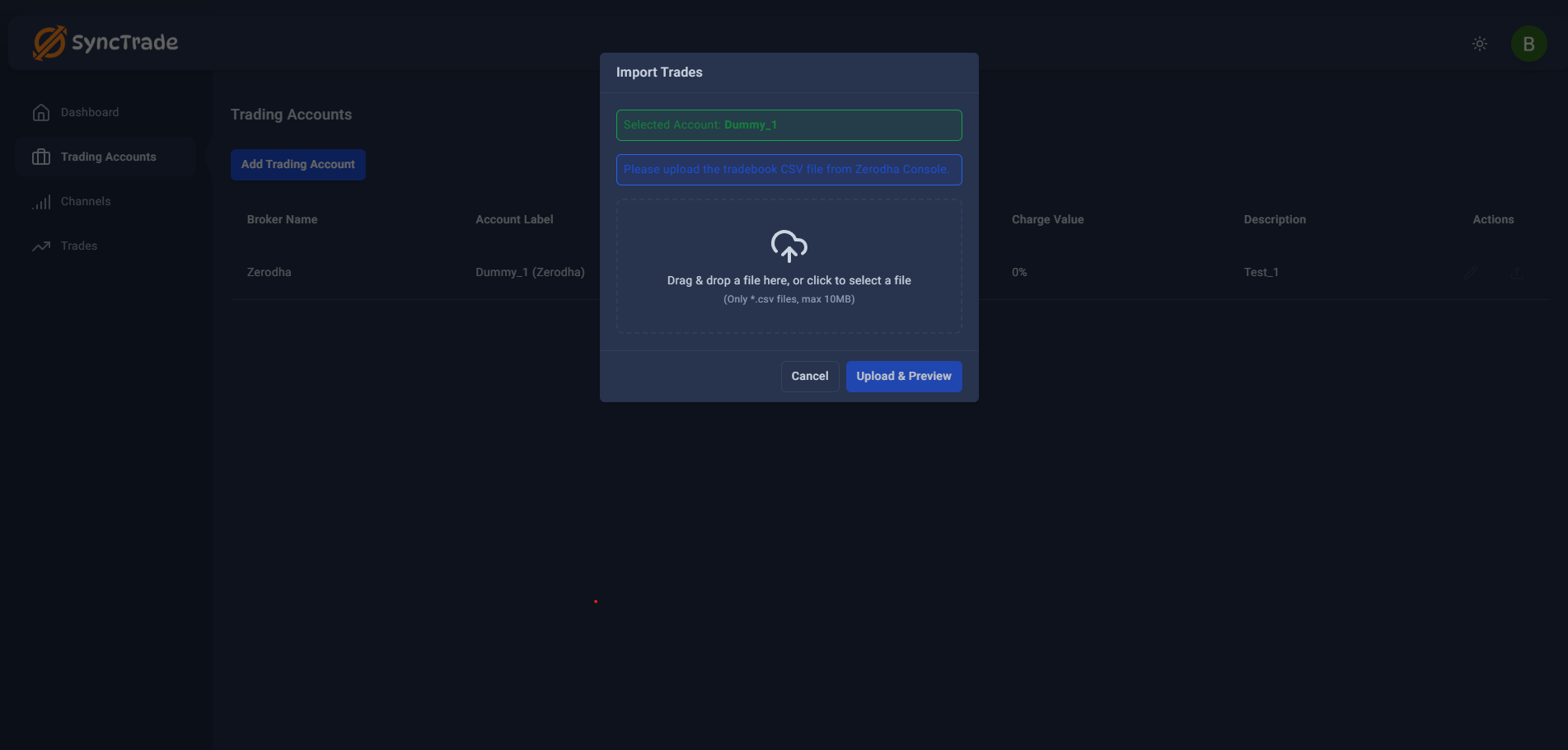
Drag and drop your Zerodha Tradebook CSV to start.
Step 2: The Smart Preview (Critical)
Before saving anything, SyncTrade performs a "Dry Run" analysis. This is our unique feature that protects your data integrity. It categorizes every row in your CSV into three groups:
- New Trades: Fresh positions that don't match any existing history. These will create new trade entries.
- Updates: Executions that match your existing open positions (e.g., scaling in or partial exits). These are smartly linked to keep your history clean.
- Skipped Duplicates: Trades that you've already imported. We auto-detect these to prevent double counting and messed-up analytics.

Review how SyncTrade interprets your data before confirming.
Step 3: Channel Tagging (Organization)
This is a huge time-saver. Instead of tagging trades one by one later, you can use Bulk Actions right here.
For example, if you know this entire batch was for your day trading strategy:
- Click the checkbox to Select All trades.
- Choose Assign Channel from the bulk actions menu.
- Select 'Intraday Strategy' (or your preferred channel).
Now all these trades will be organized automatically upon import.
Step 4: Final Confirmation
Once you're happy with the preview:
- Check the summary to ensure you're within your subscription's Trade Limit.
- Click Confirm Import.
You'll see a success message confirming that your journal has been updated. Your analytics and P&L charts will reflect these new trades instantly.
Troubleshooting & FAQ
Troubleshooting
Frequently Asked Questions
Will this duplicate my trades if I upload the same file twice? No. SyncTrade uses the unique Zerodha Trade ID to automatically skip duplicates. You can safely upload the same file again; we will only import new trades.
Can I import F&O trades? Currently, this feature supports Equity trades. F&O support is coming soon.